Transfer Die Quick Start
Below is a Transfer Die costing of a sample part. The part is shown in the Viewer, together with a green arrow representing the ram direction (the direction from which the ram approaches the part; see Ram Direction for Transfer Die). You can display the ram direction by selecting the Ram Direction GCD in the Geometric Cost Drivers pane. The main surface is also highlighted in yellow (see Main Surface for Transfer Die). You can highlight the main surface by selecting the Main Surface GCD in the Geometric Cost Drivers pane.
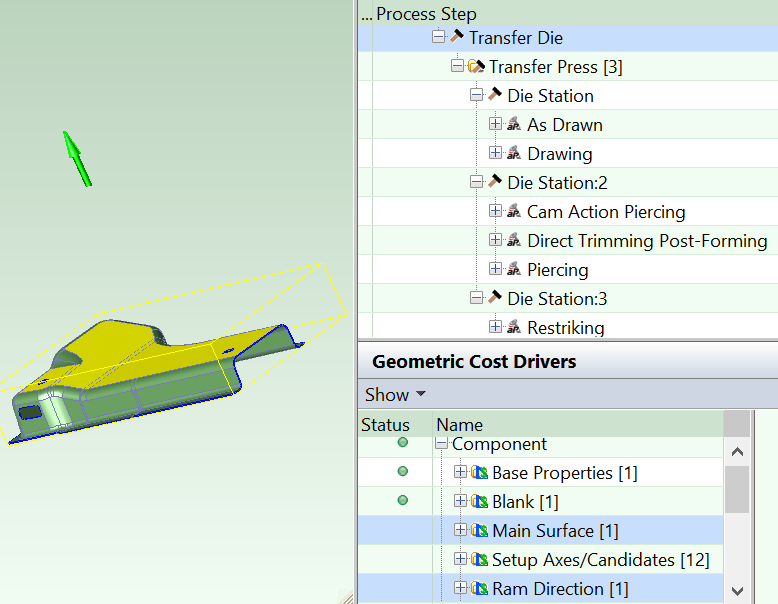
This part is routed to Offline Blanking and then to several Transfer Die stations:
Offline Blanking
Transfer Die routings start with Offline Blanking on a machine that is separate from the transfer press. (The current release can be configured for inline blanking—please contact aPriori Customer Support or your aPriori Account Manager. A future release will add out-of-the-box support for inline blanking.).
You can display the flat pattern and its associated SER (smallest enclosing rectangle) by selecting Flat Outline from the Analysis menu in the Viewer toolbar. You can display the orientation of the blank on the stock by selecting Material Nesting from the Analysis menu in the Viewer toolbar. The nesting orientation is displayed at the bottom of the Viewer.

Note that, since this part is not balanced in the sense described in Transfer Die General Process, if the part were produced as a 1-out part, the material required would be somewhat greater than that predicted by aPriori.
Die Station 1: Drawing
For many parts, the first station draws the part’s primary form (the part’s largest form of subtype EMBOSS that is adjacent to the main surface--see Primary Forming for Transfer Die).

A flange, such as the one shown in yellow below, is recognized by geometry extraction as a form that is separate from but related to the primary form. The model assumes that this flange is formed by the same drawing operation that creates the primary form. Since a single occurrence of the Drawing operation creates both the primary form and the flange, the flange is assigned to the operation As Drawn, which carries no additional cost.
